Learning Accelerator for Math
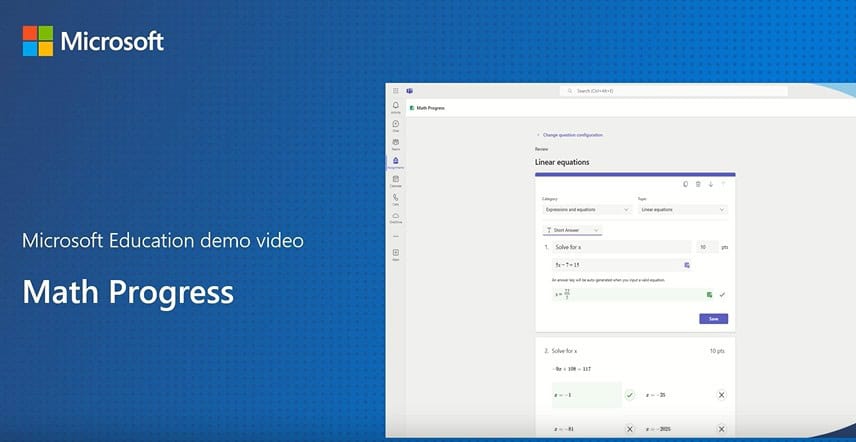
Math Progress is a free tool built-into Microsoft 365 for Education that helps accelerate math skills with data-driven and personalized learning experiences that free up educator time.
It helps accelerate numeracy gains by streamlining the creation, review, and analysis of math practice for educators and providing feedback to students on the problems they did not solve correctly.
Studies show that adaptive or personalized learning platforms can help quickly close the gap these losses have incurred on students by addressing a student’s current ability level, identifying strengths and weaknesses, and providing relevant and targeted practice opportunities.
Below is a quick 2 minute demo.
Below that is a longer, more detailed “How to use Math Progress in Microsoft Teams” video (by Mike Tholfsen, Principal Group Product Manager for Microsoft Education) which shows off many of the features and customizations available to you.
Video Transcript
Math Progress is a free tool built into Microsoft 365 for Education that helps accelerate math skill with data driven and personalized learning experiences that free up educator time. This demo shows how the Math Progress learning accelerator can help educators and students achieve their goals.
As an educator, you want to create an algebra assignment. During the assignment creation process, you can use a learning accelerator. Learning accelerators are free tools in Microsoft 365 Education that help create, review, and analyze practice assignments while providing students with real-time coaching. The learning accelerator will help you generate questions of different complexities appropriate for your target students.
You can select from the autogenerated questions or create your own. You can also modify the auto-generated questions and answers.
For example, change the answer type from Multiple Choice to Free Text so students can provide their own answer. You can also attach an image or graph to the question to provide further instruction or to add clarity.
The multiple choice options are not generated arbitrarily. They’re designed to catch common mistakes that students could make. The assignment can be further customized through Settings:
- Show your work: Ask students to upload images of their work.
- Student rating: Ask students to rate the difficulty of questions.
- Shuffle question order: Displays questions in different order for each student and helps protect the integrity of the assignment.
Let’s see the experience from a fourth grade student’s perspective. As you answer the questions, you can provide feedback to the teacher on the difficulty level for each question.
For a short answer type of questions, you will see a text box with virtual math keyboard for filling out the answer.
You can upload an image to show your work.
The assignment is now ready for submission.
As an educator, you’re ready to review the assignment. The submitted assignments are auto graded, but you can override the grating, if necessary. You can see detailed information about the assignment, such as total grade and average difficulty perceived by the student.
You can also compare the student’s progress over time and compare it with the class average.